How to use GPTZero Writing Report and Writing Replay
Our Writing Report shows how a Google Doc was written, including a replay of the writing process and an evaluation of whether the typing pattern looks human.

When it comes to proving the authorship of a document, AI detection is just one part of it. Special tools, such as GPTZero’s Writing Report and Writing Replay, can also show you exactly how the writing process unfolded and how a document was written, edited, and pasted.
Much like X-rays of the document creation process, these tools enable you as a student to demonstrate how your work came together. As an educator, they give you valuable information if you need to start a conversation about the authenticity of a student's work.
TL;DR
The Writing Report provides playback and information about how a document developed, and Writing Replay is the playback experience within that report. To use it inside Google Docs, all you need is the GPTZero browser extension (along with a signed-in account) and edit access to open the report yourself. A student can also send you a shared report link. The ultimate goal of this tool is to walk a viewer through how a document has come to life.
What is the GPTZero Writing Report and Writing Replay?
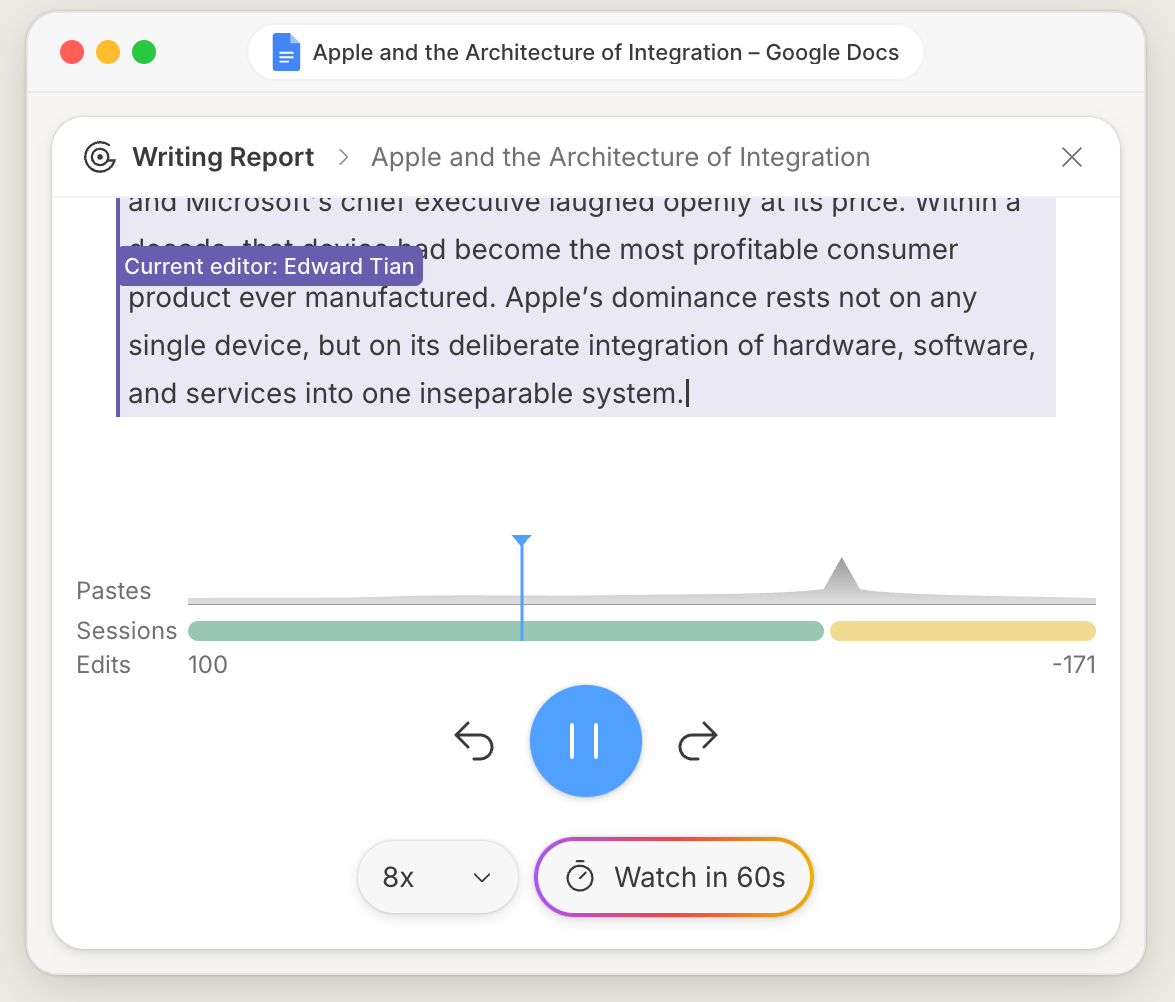
The Writing Report is a replay of how a document was written. You can watch the writing process play back and see editing sessions and pastes on a timeline. You can also access a typing analysis that scores how natural the typing patterns look.
GPTZero’s Writing Replay brings your Google Docs writing process to life, showing exactly how a piece was written, edited, and pasted. Now supporting multiple editors, switch to see how different writers contributed to the final document.
It captures the writing process in two ways: in the GPTZero dashboard, the editor records your writing as you type. In Google Docs, the Chrome extension builds the replay from the document's revision history. Either way, you get the same Writing Report, with playback, timeline, typing analysis, and Investigate chat.
How to open a Writing Report in Google Docs
To open it:
- Install the GPTZero browser extension and log in; it works in Chrome, Edge, and Firefox.
- Open a Google Doc that you can edit.
- In the GPTZero menu, click Watch Writing Report.
If you only have view access, the menu says Request edit access. If the Google Docs header is collapsed, it says Expand Google Docs top menu. If nobody has edited the document yet, it says Please make an edit to view the writing report.
You can share the report as a link. Writing Reports have a usage limit on the free plan.
What to look for in the report
Writing Replay and the activity timeline
Use playback to follow changes to the document, as the timeline helps you find activity worth reviewing, including paste events, and the edit controls let you move through changes. You can use the 60-second overview or adjust the playback speed to find the relevant part of a longer session, then slow down to inspect it.
We recommend looking out for how the argument develops: was an example added after the main claim? While the process doesn’t have to look perfectly tidy (i.e., a writer might experiment with different introductions, take out and re-insert paragraphs), what matters is whether the process makes sense.
Pastes and large text insertions
Pay attention to major pastes on the activity timeline and activity cards. While it’s easy to assume AI has been used, you can also see the paste as something that, for example, a student might have taken from an earlier draft they wrote themselves.
This is one example of where concrete proof is useful when enquiring about where certain parts of the submitted text came from.
Typing Analysis and autotyper flags
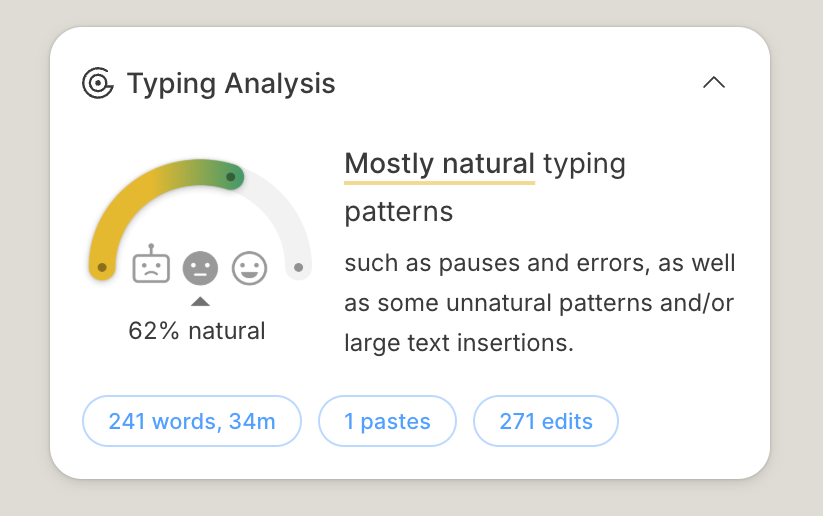
GPTZero’s first-of-its-kind natural typing analysis constantly runs AI detection on large copy-pastes, and layers a proprietary algorithm trained on millions of documents that identifies human typing and natural editing patterns.
Typing Analysis looks at patterns in how the text was entered, including pace, pauses, and corrections. GPTZero’s autotyper detection also looks for signs of software that simulates someone typing.
It’s worth remembering that a typing assessment differs from an AI text assessment. While a typing assessment looks at how text entered the document, an AI text assessment looks at whether the language has the same patterns of AI-generated writing.
Multiple editors
You can switch between writers to review their changes, which can show collaboration in a shared document or a group project. It can also be especially helpful if you need to follow up on a specific contribution from an individual.
While editing activity can prove certain contributions made in the document, it doesn’t show all the work that could have happened elsewhere (i.e., a student who came up with fewer words could still have done a lot of work on the project).
How the Writing Report is different from an AI detection result
While Writing Replay helps you look at the recorded process, AI detection looks at the text itself to predict whether its patterns point toward human writing, AI writing, or a mixture of both. At GPTZero, we do sentence-level scoring, which includes a statement about our confidence in our prediction.
No AI detector is flawless, and these tools can sometimes misclassify text, which can lead to false positives (or false negatives). We’ve always said that any results from an AI detection scan should be treated as a single data point as opposed to a final verdict.
How to share a Writing Report
To show someone else your Writing Report, open the report, select Share, enable “Allow anyone with the link to view,” and choose Copy Link. You can use Open Link to check the shared view yourself.
Anyone who has the link can then view the report in a browser. To stop sharing, return to Share and switch off link access. Make sure to check the report before sending it, especially if it includes another contributor’s work.
FAQs
Is the Writing Report the same as Writing Replay?
They are related but not the same, because Writing Replay refers to the playback experience. At the same time, the Writing Report includes that replay as well as information about how the document came to exist.
Can I share a Writing Report?
Yes. Every report has a share link, and you control whether the link is public. Students can share a report with a teacher to show their work, and teachers can share findings with students or colleagues.
Is a writing replay proof that someone used AI?
The Writing Report is evidence of process, not a verdict. A natural typing rhythm and a visible drafting history are strong signals of authorship, while a large unexplained paste is worth a conversation. Pair the replay with GPTZero's AI detection for the full picture.