How to Check Multiple Files For AI At Once with GPTZero's Batch Upload Feature
A quick guide to our batch upload feature

When you’re dealing with multiple files, checking them one by one for AI can be incredibly time-consuming. This is where the magic of GPTZero’s batch upload comes in.
Instead of opening every file individually, you can upload multiple files at once and review them together, which makes the whole process way faster and more manageable.
Whether you’re a teacher marking a pile of assignments, a writer reviewing multiple chapter drafts for a book, or a manager checking multiple CVs and job applications, it’s a surefire way to save time without sacrificing consistency, particularly when you’re reviewing a large set of submissions. And it couldn't be simpler.
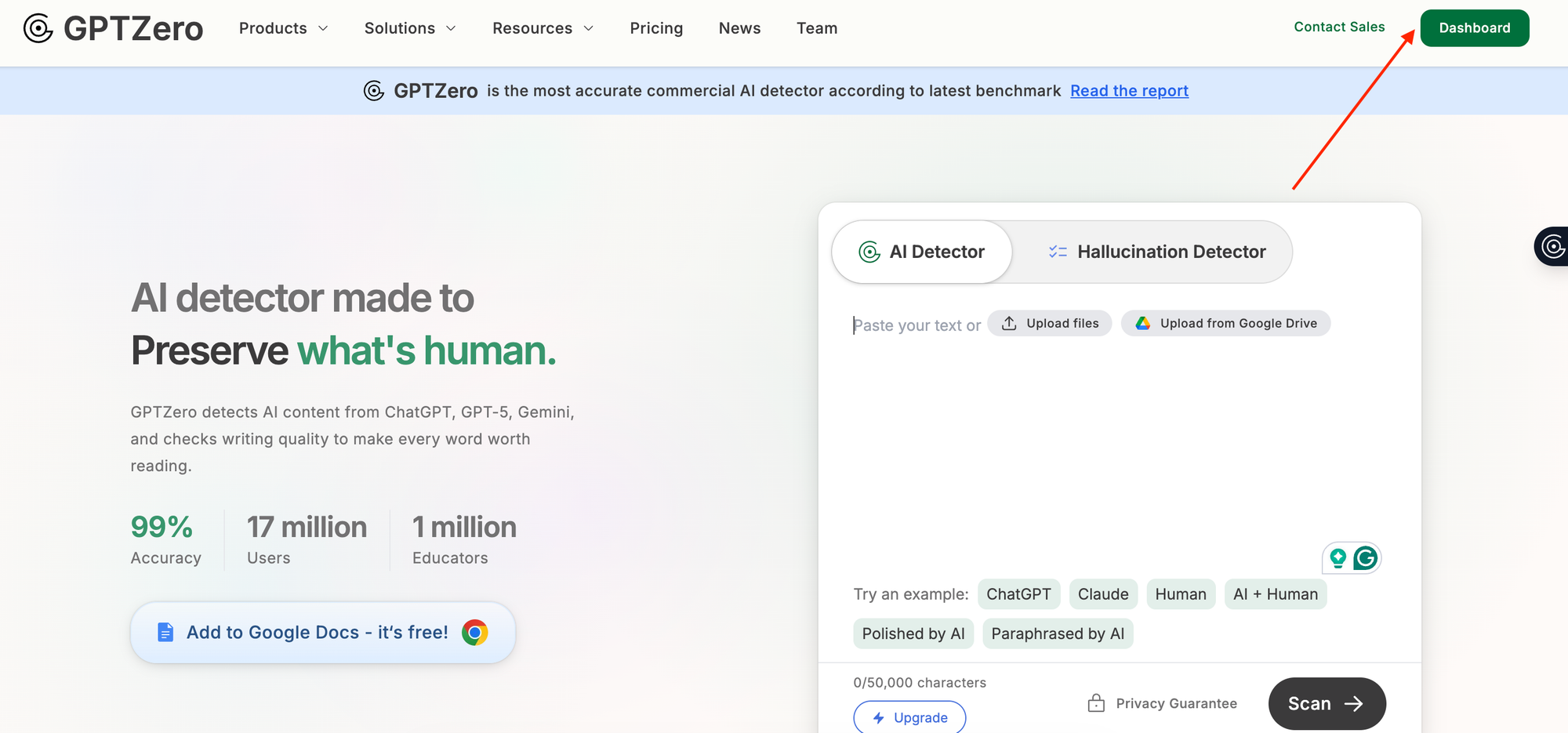
First, go to your Dashboard. This is on the top right hand corner of your screen when you land on GPTZero.
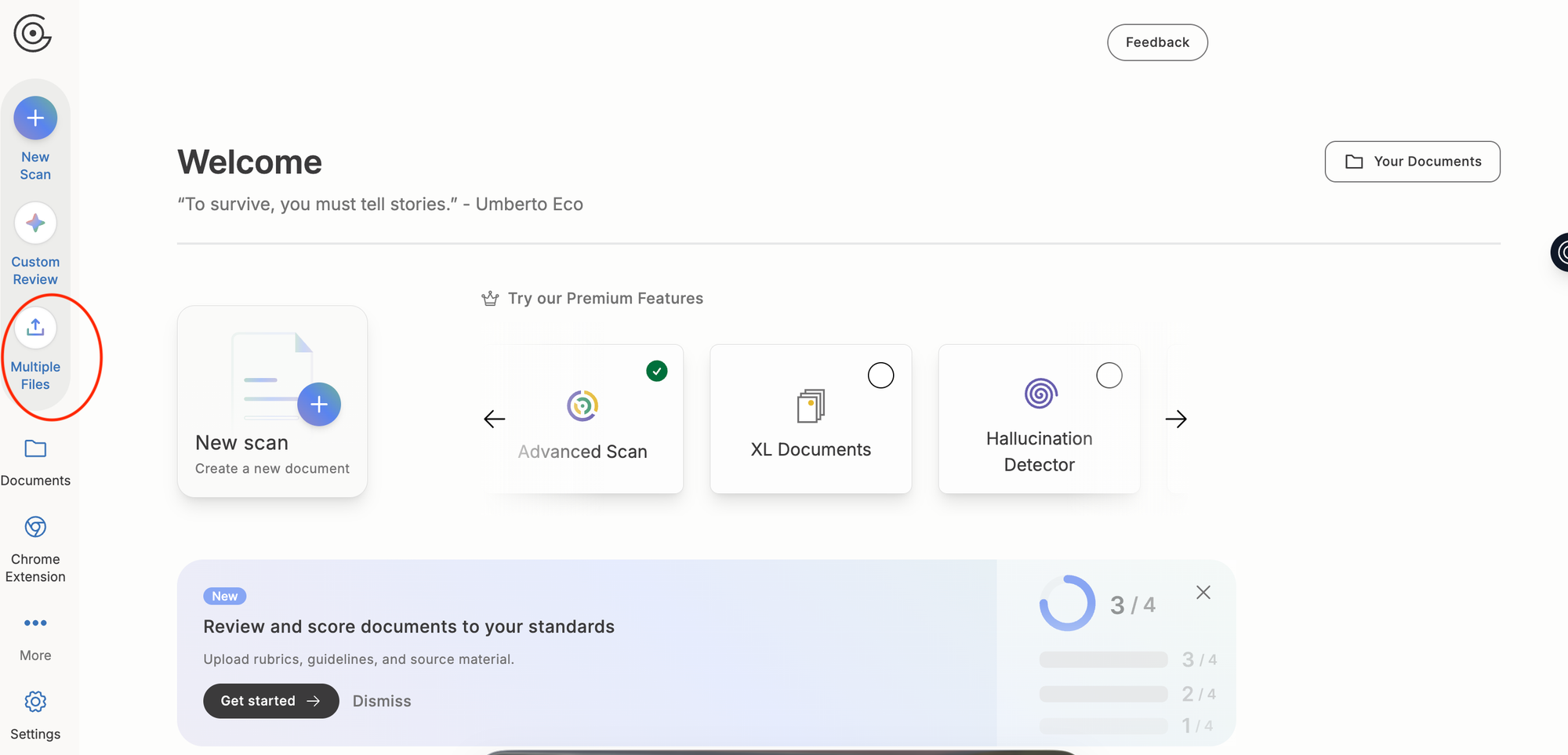
Then, click on Multiple Files. This is to the left centre of the screen once you’re inside the Dashboard.
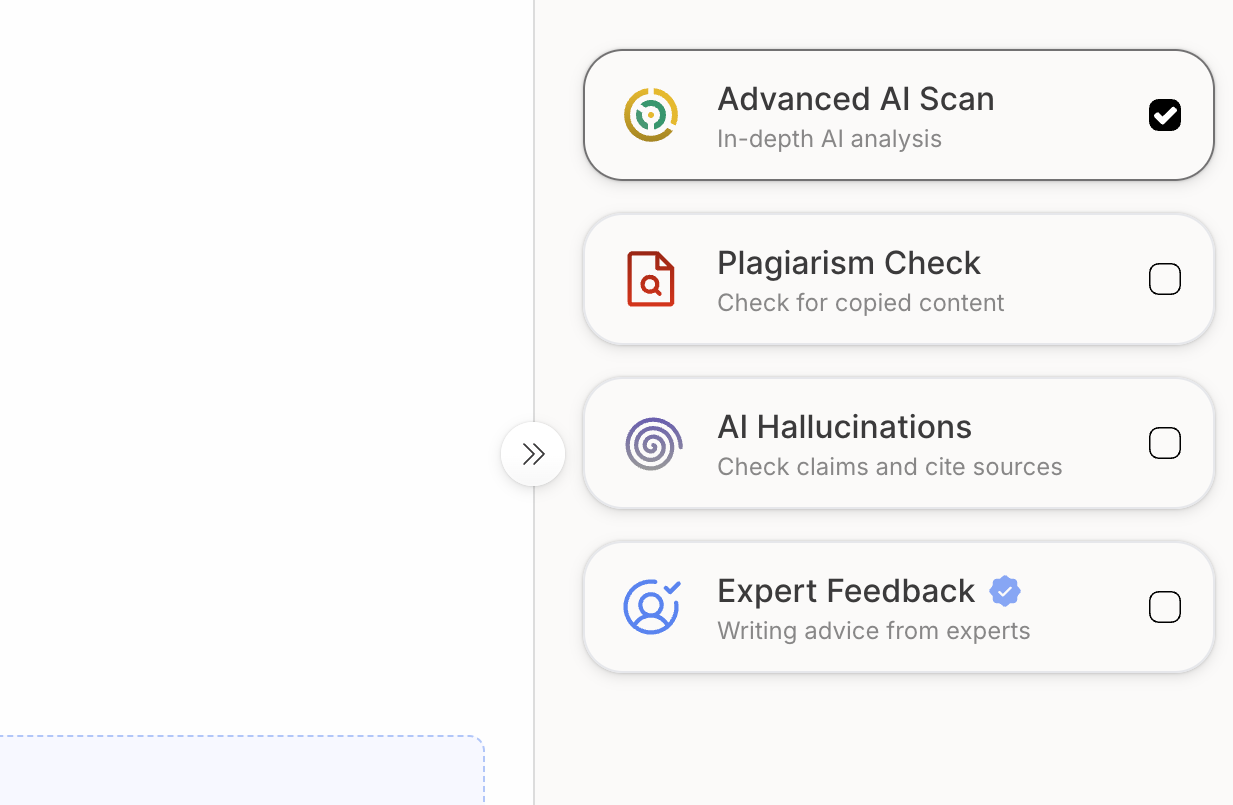
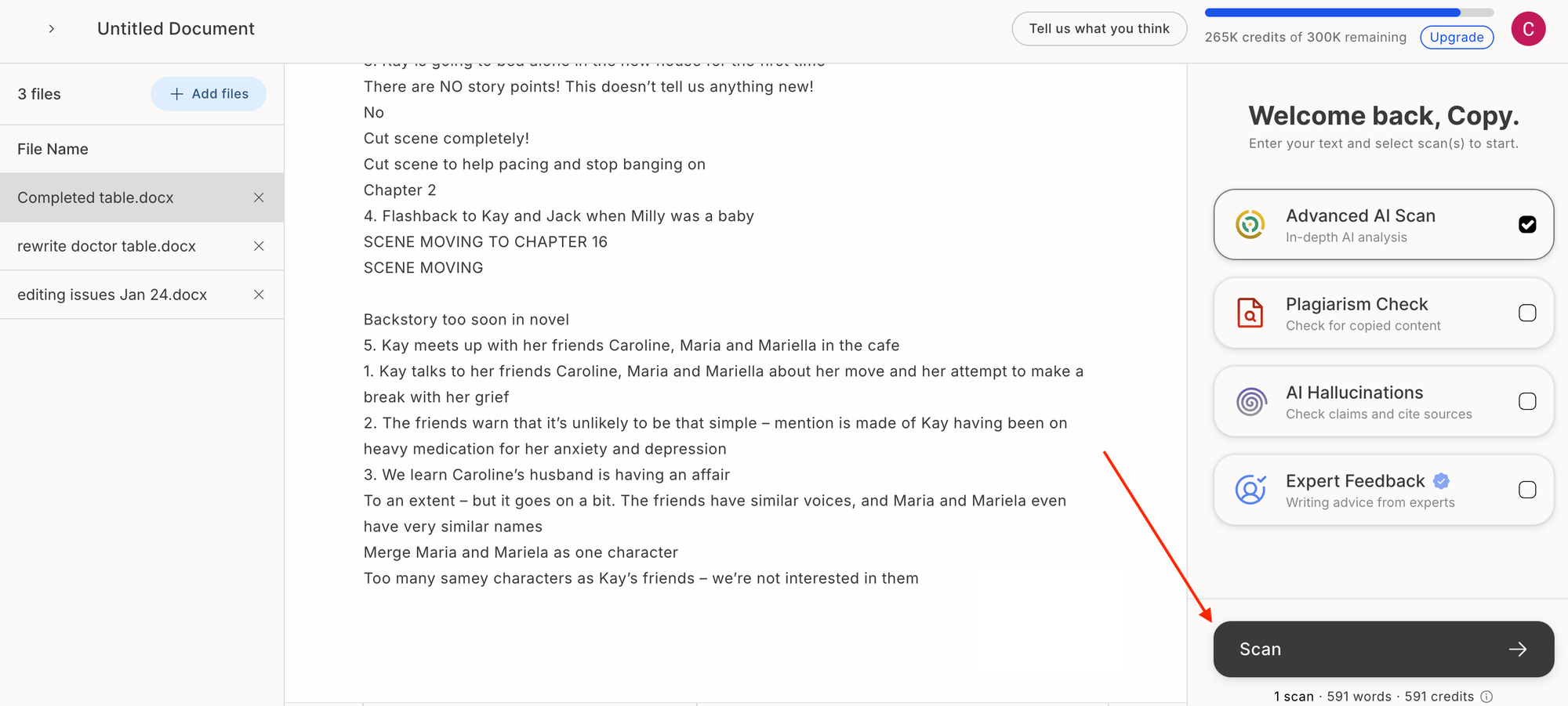
Next, make sure AI detection is selected, and that the tickbox has been checked on the right-hand side of the screen.
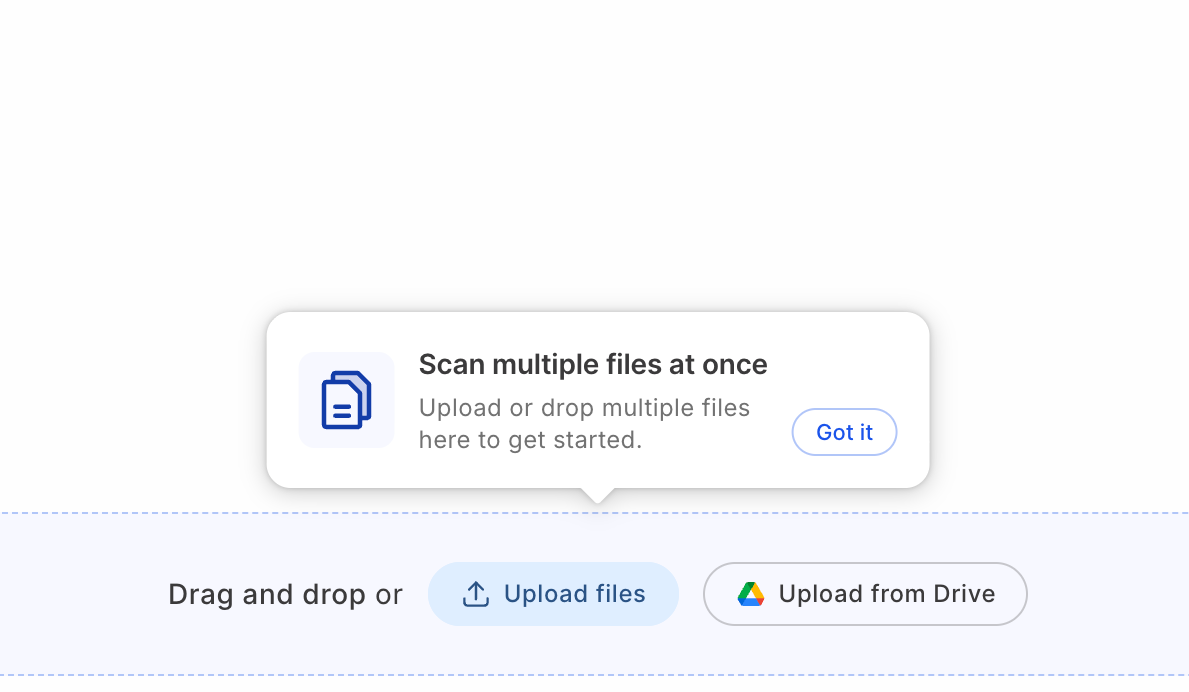
Then, just use the buttons to upload your files from your computer or from Google Drive.
Once your files are uploaded, click 'Scan' in the bottom right corner.
From there, let GPTZero run the scan, and then review the results across the batch.
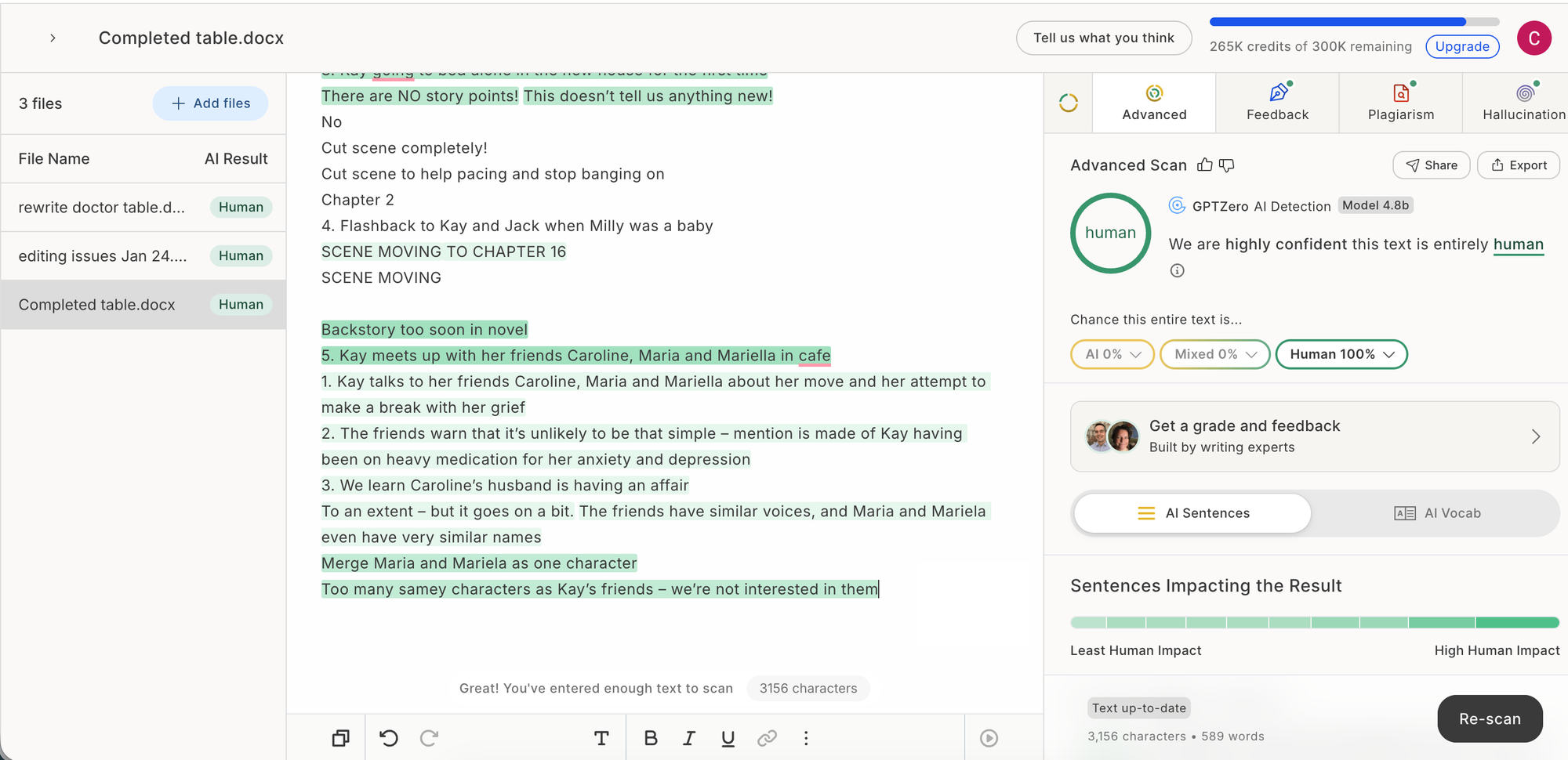
This makes it easier to gauge patterns, see which submissions may need a closer look, and redirect your attention to where it's most needed.
The value of batch or bulk upload – beyond being a lot faster – is that it gives you a more streamlined workflow when you’re reviewing writing at scale. Instead of having to jump between endless files and tabs, you can take a group of assignments in one spot and use the results for a more informed review.