Jenni AI Review: Key Features, How to Use, & Honest Experience
Is Jenni AI genuinely useful, or is it just another generative AI marketed as a research assistant? We ran a real test to help you. Find out in this Jenni AI review!



A 2025 Nature survey of nearly 5,000 researchers across more than 70 countries found that 57% had already been using AI for help with their writing, and 72% expected to in the next two years.
So if you're looking for ways to make manuscript writing less painful, you're definitely not alone.
I love the side of research where I get a dataset or a methodology to stress-test, and I'm in my element.
But manuscript writing has always felt slower to me than it needs to be. Who exactly would want to keep a hundred different tabs open and make sure they remember what they read on each just so they could write a sentence for their paper?
I'm always open to tools that reduce such friction points. Lately, Jenni AI has been coming up in conversations about academic writing assistants, so I decided to test it myself rather than take anyone else's word for it.
In this Jenni AI review article, I present a summary of all I found when I put the tool to the test, its core features, what exactly the workflow looks like, and how the output performs in terms of accuracy and AI detection.
TL;DR
Jenni AI is a research writing tool that allows you to autocomplete, include citations, edit your drafts, and manage a personal library of papers.
In my test, it handled 9 APA citations without a single hallucination, which was better than what I expected. The editing features (especially Fix Flow Issues) are also super useful when you hit a writer’s block during a write-up.
But when I ran the Jenni AI output through GPTZero, 100% of it was correctly flagged as AI-generated.
So if you use Jenni to write full sections, you will need to rewrite a lot before submitting it to avoid AI detection.
What is Jenni AI
Jenni AI is a research assistant claiming to come up with well-structured and cited academic work. It works more like a text editor. It will write your paper, and with that, it will also pull in citations and let you chat with your research library.
Jenni AI was founded in 2019 by David Park and Henry Mao. Park, the CEO, was a college dropout inspired by entrepreneurial influences from a young age. He used to develop AI writing tools from his parents' home. Henry Mao was the technical co-founder with expertise in neural networks for natural language generation.
The tool started as a writing agency and then an AI tool for SEO content with GPT-2. The tool wasn't very famous until July 2022, when a tweet by technology blogger Zain Kahn listing Jenni AI among free productivity tools went viral. It brought a flood of traffic that, for a moment, overwhelmed Jenni AI's servers.
Then, the CEO of Jenni AI, David Park, noticed that power users are all researchers and students, so he pivoted Jenni AI into the EdTech tool we see today.
Currently, the company’s estimated valuation is around $25 million and as stated on their website, Jenni AI now has over 5 million academic users worldwide.
Jenni AI Features
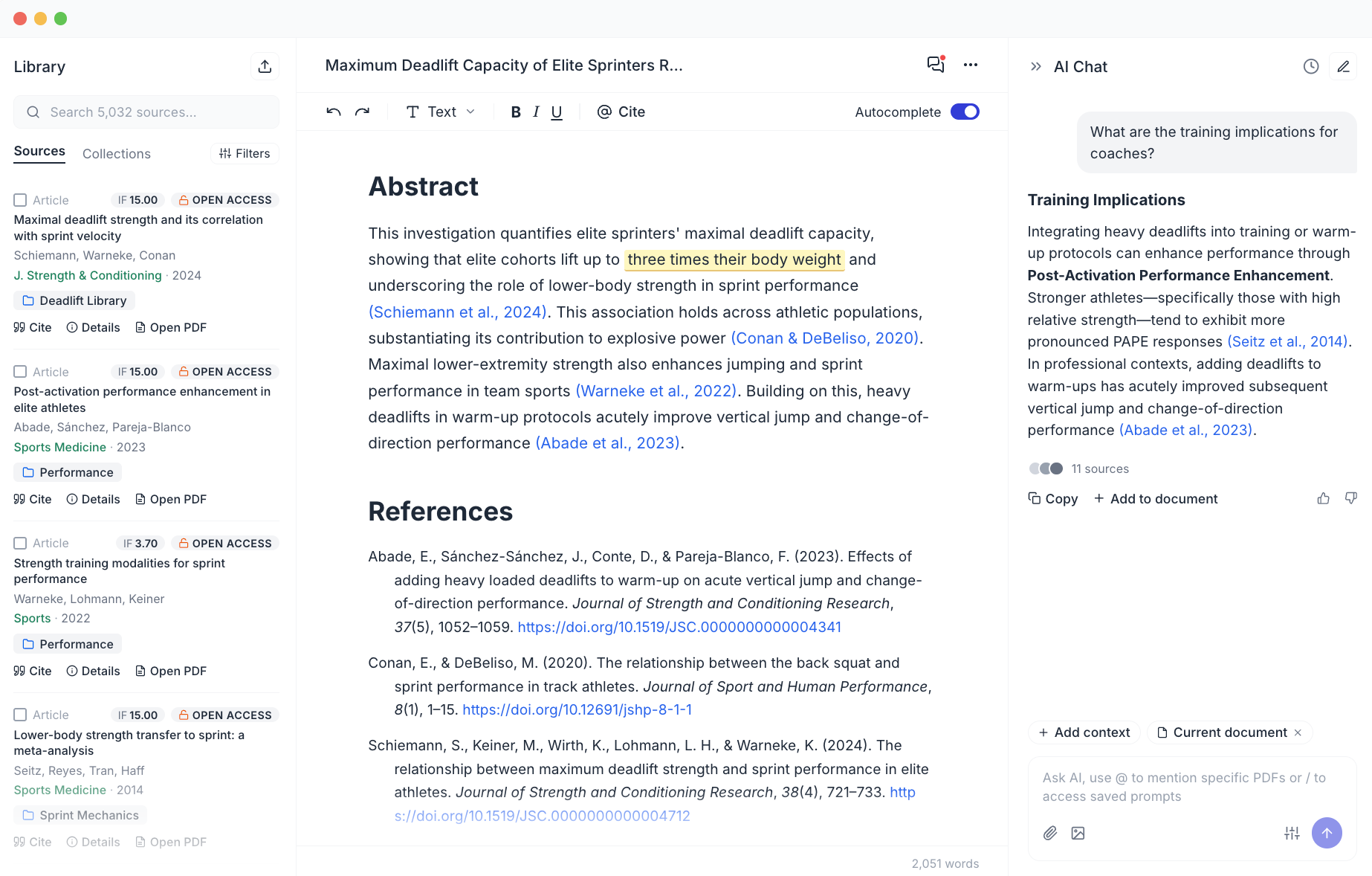
Jenni AI has a set of targeted features for research needs. Here are some of its core ones.
AI Autocomplete
The flagship feature of Jenni AI suggests coherent subsequent sentences, in the required academic format, after you begin writing in the editor.
It is contextually aware, which means the suggestions will be based on the tone and argument you've been building.
The best thing about Jenni AI is that you have full creative control over your writing, so you can toggle this feature on or off, depending on your needs.
In-Text Citations
If you’re a researcher yourself, you probably know how much we all dread in-text citations while writing a research paper.
Jenni connects every AI-suggested sentence to the exact source location, which could be an online published text, or any of the PDFs you share with it (more on this later!).
As of today, it supports 2,600+ citation styles, which of course include the mainstream APA 7th, Chicago, Harvard, IEEE, Vancouver, and hundreds of journal-specific formats.
To insert a citation, you just need to type "@" for Jenni to search and add citations inline as you write.
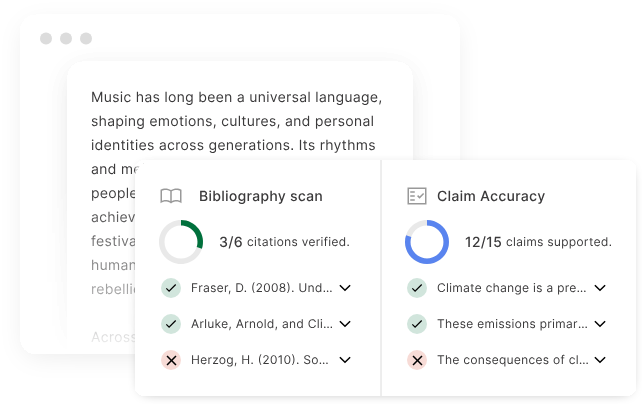
A word of caution here is that you must always cross-check that the cited reference actually says what Jenni implied it does. AI, no matter how good, is still AI and can make mistakes or hallucinate.
To further verify your sources and bibliographies, you can use GPTZero’s hallucination detector to be on the safe side.
AI Chat and Research Library
Jenni AI allows you to create your own library of studies that you will be using while writing a paper.
It has an in-built chat feature that will also summarize those papers for you, compare findings of different studies, answer questions you may have about any uploaded text, etc. You can upload multiple PDFs together.
The AI Chat is another standout feature of Jenni AI because you won't have to jump to the browser if you don't understand any aspect of a study you want to cite. You could just interrogate Jenni AI chat about it while you're still in editing mode.
Your personal research library hosts all the articles of importance for your manuscript. Jenni AI’s autocomplete feature can be customized to only refer to studies you have uploaded to your library to extract relevant arguments rather than producing generic text.
AI Editing Commands
After you have a rough draft ready, Jenni AI also doubles as a language and grammar checker for academic manuscripts.
Highlighting a sentence, for example, brings up suggestions to simplify wording, improve the fluency of your text, paraphrase it, translate it into different languages, and a lot more.
You need to highlight the text and hit Control + J (or Command + J) to see the menu of editing commands. There are a lot of editing features grouped into 3 categories:
- Strengthen writing: It includes improving fluency, paraphrasing, simplifying, strengthening arguments, and adding counter-arguments
- Transform: This set of features includes changing the tense of a sentence and converting text to bullets, a numbered list, back to prose, or translating into other languages
- Academic style: This allows you to increase the formality of text, make it precise, and increase or hedge claim confidence
Outline Builder
Jenni also gives you creative freedom to plan your manuscript before you begin writing it.
After you enter a prompt, it will get you a list of section headings that you can get started with and change as needed. Such an outline is very helpful for longer manuscripts like dissertations and literature reviews.
Again, the outline is built considering the library of articles you have uploaded already.
How to use Jenni AI
The user workflow for Jenni AI is pretty simple. You need to go to jenni.ai and sign up, or log in with your active Google account.
Just after you verify your account, Jenni asks you what your current role is.

Once you're in, you will auto-land on a blank editor with the following interface:
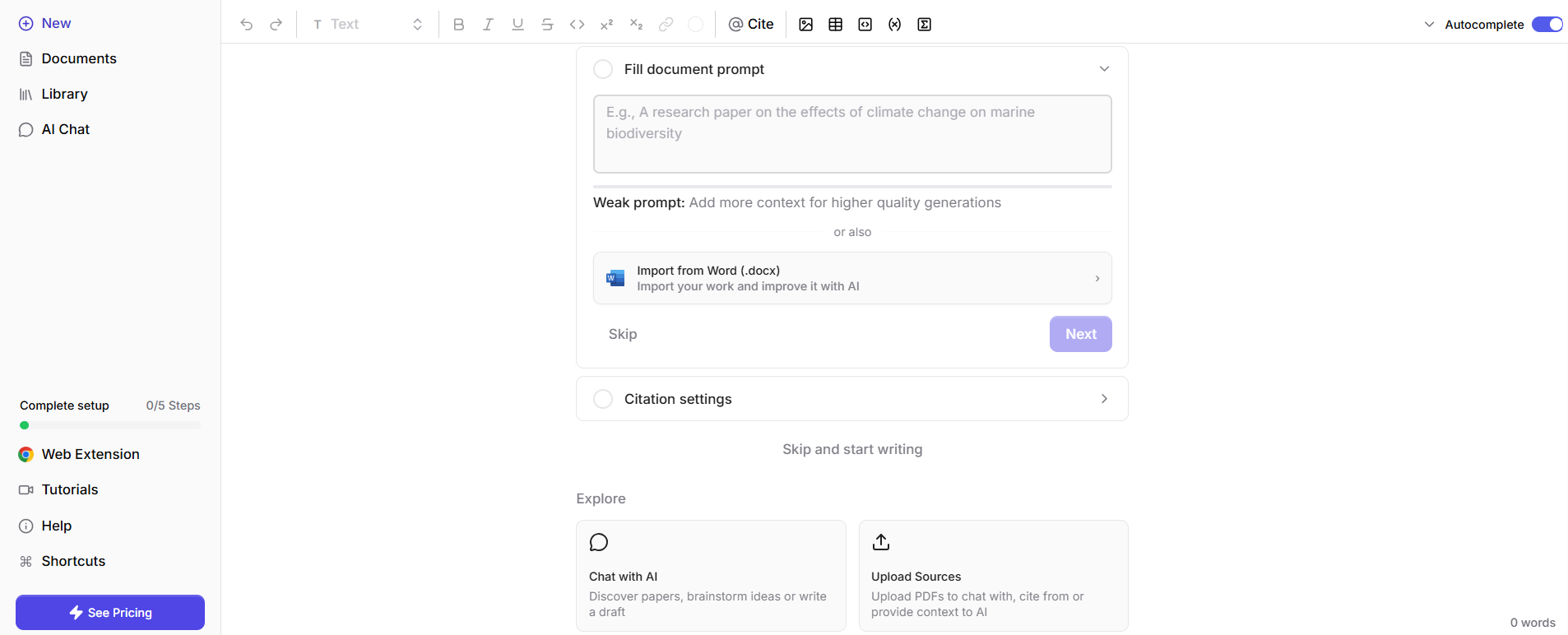
Before starting any writing, the tool asks you for a prompt upon which it will calibrate its suggestions and citation searches.
The “Import from Word” gives you the authority to build your research library that will give AI a grounded factual base. Once your papers are uploaded, Jenni will draw its autocomplete suggestions and citations from your sources.
You also get to choose your desired citation format right here.
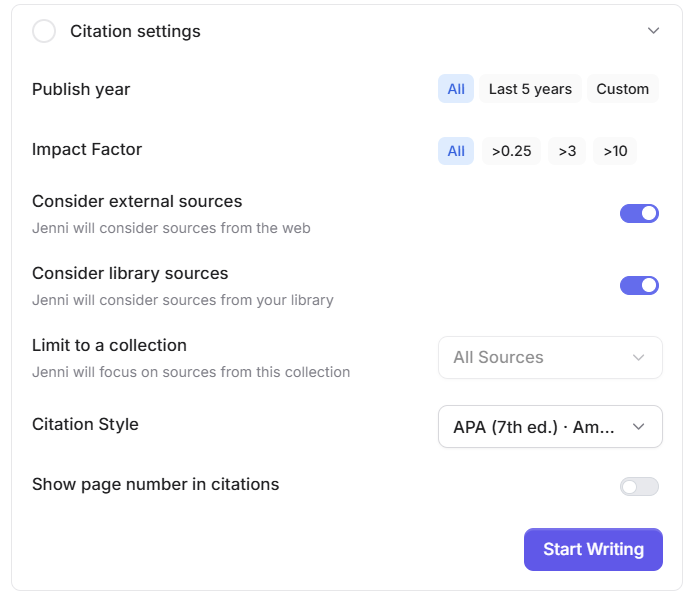
After that, you get to the editor, where you start writing.
Jenni AI auto-complete will provide you with suggestions as you begin your sentences. You can accept a suggestion by pressing Tab, decline it if you want to, or ask it to provide an alternative suggestion. So, you are under no obligation to accept all the suggestions.
The AI chat feature can be opened in the side panel, where you can instruct AI to adjust its suggested text or pull out specific arguments from papers you have uploaded.
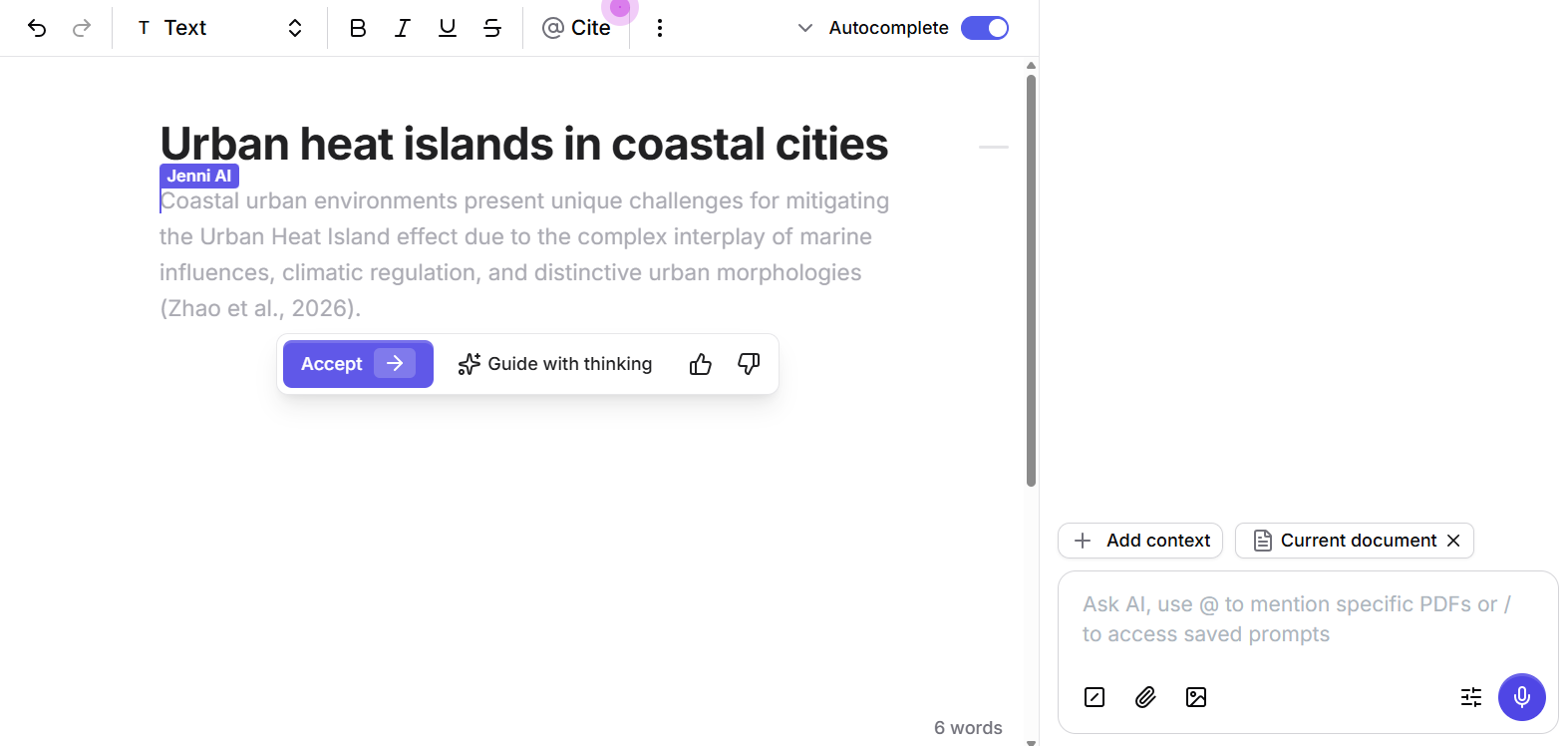
Wherever you need to add a citation, type “@” in the document editor to trigger opening a list of relevant references. You can sort them by recency, relevance, and by the year it was published. Alternatively, click on “Cite” at the top bar to get to the same menu.
With the free plan, you get to generate 200 words per day, which is way too limited. It can only get you at least a genuine feel for the tool before you commit to a paid plan.
Jenny AI works for multiple languages, such as English, Spanish, German, French, and Chinese.
After you are done writing, you can export your draft, with formatting completely intact, in LaTeX, .docx, or HTML formats as per your target journal requirements.
Jenni AI Reviews: What Do Users Say About It?
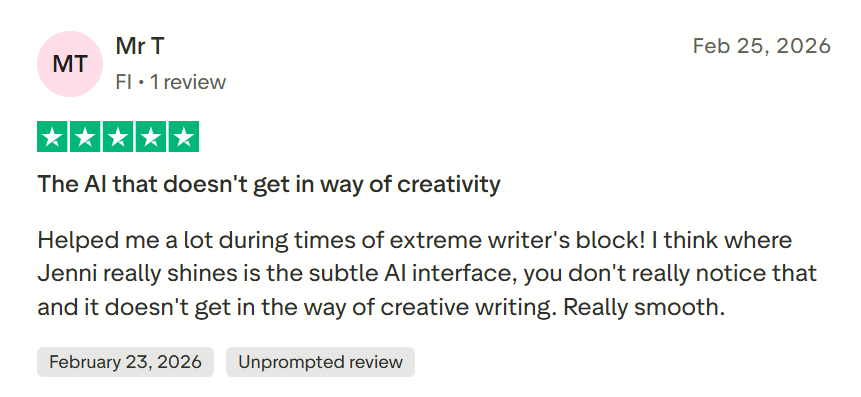
After using Jenni AI myself, I spent a lot of time reading what other users had to say about Jenni AI. The tool seems to have a loyal user base that has left hundreds of positive reviews on independent review websites (TrustPilot, G2, Reddit, etc.)
Users have gone at length to even call it a “life-saver” for their academic projects.

The majority of the users, myself included, like the fact that Jenni AI does not take the entire writing process into its own hands as LLMs (ChatGPT, Gemini, Claude, etc) do. It gives you enough room to keep the creative control to yourself and use it only when you hit a block.
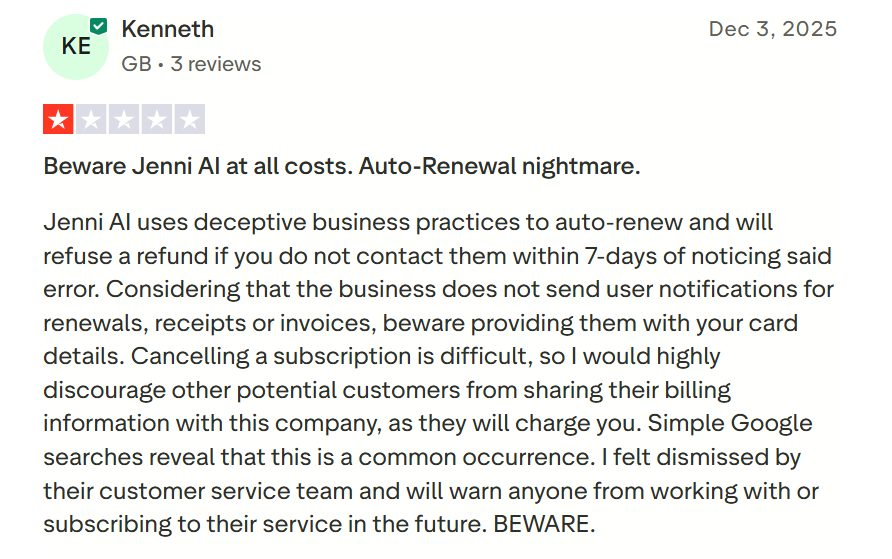
However, I saw many users complaining about unannounced auto-renewals for payments they never consented to. Some users also had difficulty sorting out such issues with the customer service team.
So, the tool itself has pretty good features, but the team responsible for responding to customers could use some improvement.
My Experience Using Jenni AI: Can It Bypass AI Detection?
As a researcher myself, I have to pay attention when a tool promises to make the manuscript writing side of research more fluid.
So, I gave Jenni AI a sit-down session where I used it to write an introduction section of a research paper on urban heat islands in coastal cities.
For this Jenni AI review, I used the tool to write a 250-word-long, research-backed draft, mostly letting the AI autocomplete take over one sentence at a time.
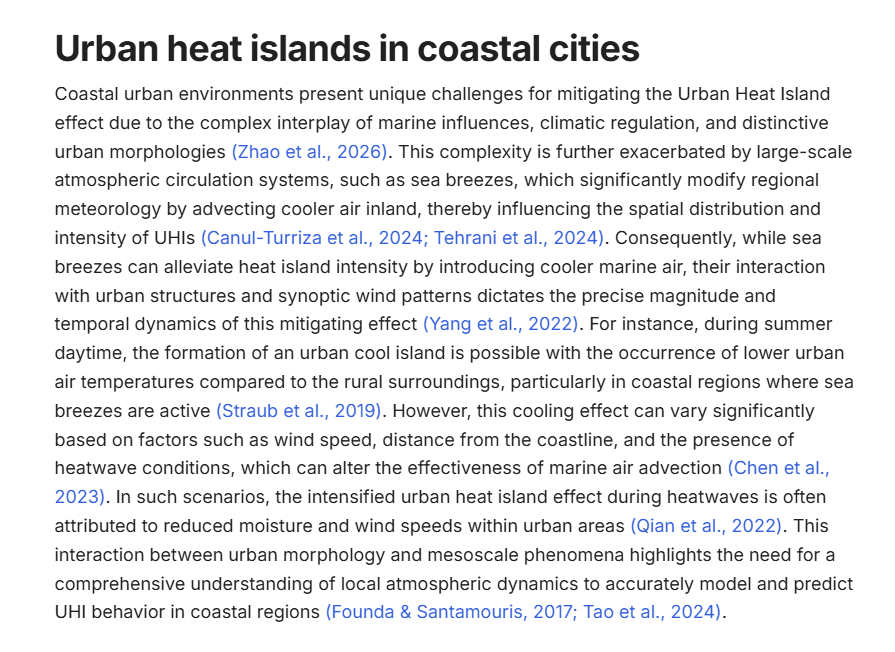
The writing it produced was pretty decent in terms of consistency in tone and structure variations.
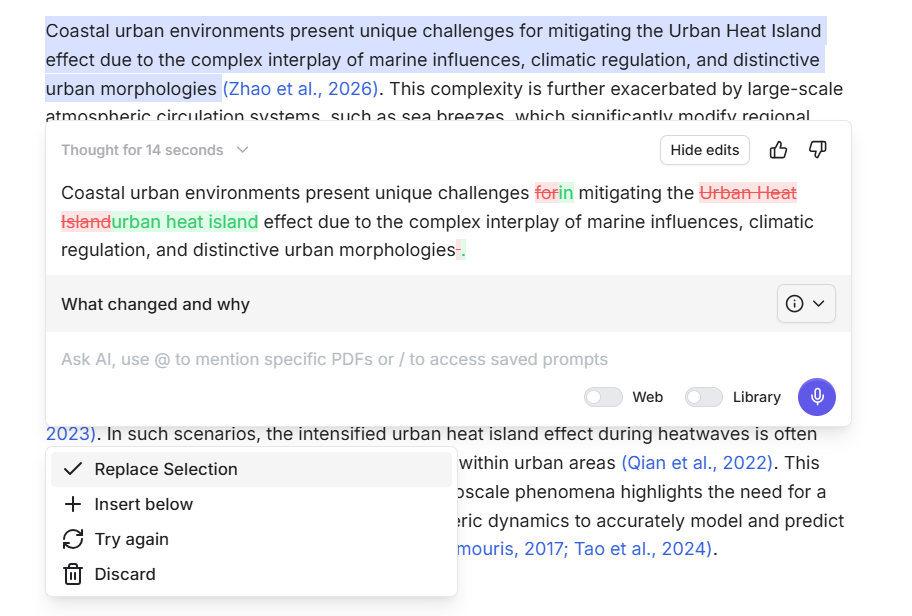
By far, my favorite Jenni AI feature was the “Fix Flow Issues” inside the AI editor. It took a few seconds to restructure the sentence I selected and highlight the changes it made in the new sentence structure.
I could quickly compare the original and revised versions side by side, and it was up to me to decide whether to accept the edit or keep what I had.
Jenni AI Citations
Before using the tool, I read a lot of user reviews, some of which, from the early years of the Jenni AI release, mentioned incorrect citations (AI hallucinations, as we call it). So, I was naturally skeptical of the citations feature when testing the tool.
In my 250-word-long text, Jenni inserted 9 inline APA references. For every cited reference, I looked up the paper to verify the authors, year of publication, DOI, and whether the citation was used accurately. To my surprise, all 9 checked out!
To be honest, the fact that Jenni AI was accurate with all 9 references in a single session was a better result than what I was expecting. Perhaps it might hallucinate in longer texts.
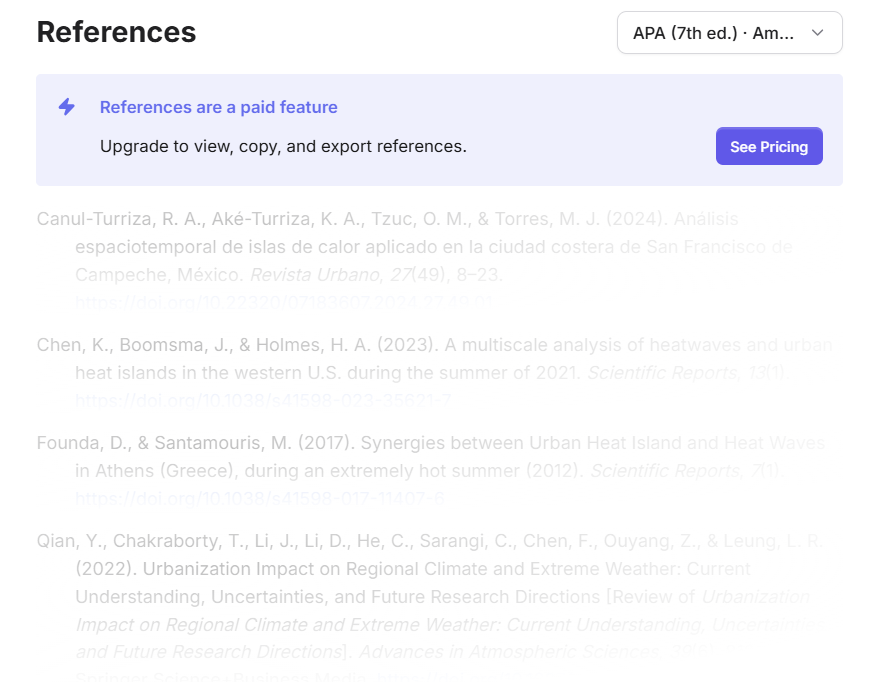
Free plan users need to know upfront that Jenni AI inserts citations as you write, but viewing, copying, and exporting your reference list is locked behind the premium plan.
On the free tier, the reference section is blurred and inaccessible. Here’s what you’d see on the free plan:
AI Detection on Jenni AI Output
On the question of AI detection, I ran the full 250-word output through GPTZero and found that 100% of the text was flagged as AI-generated.
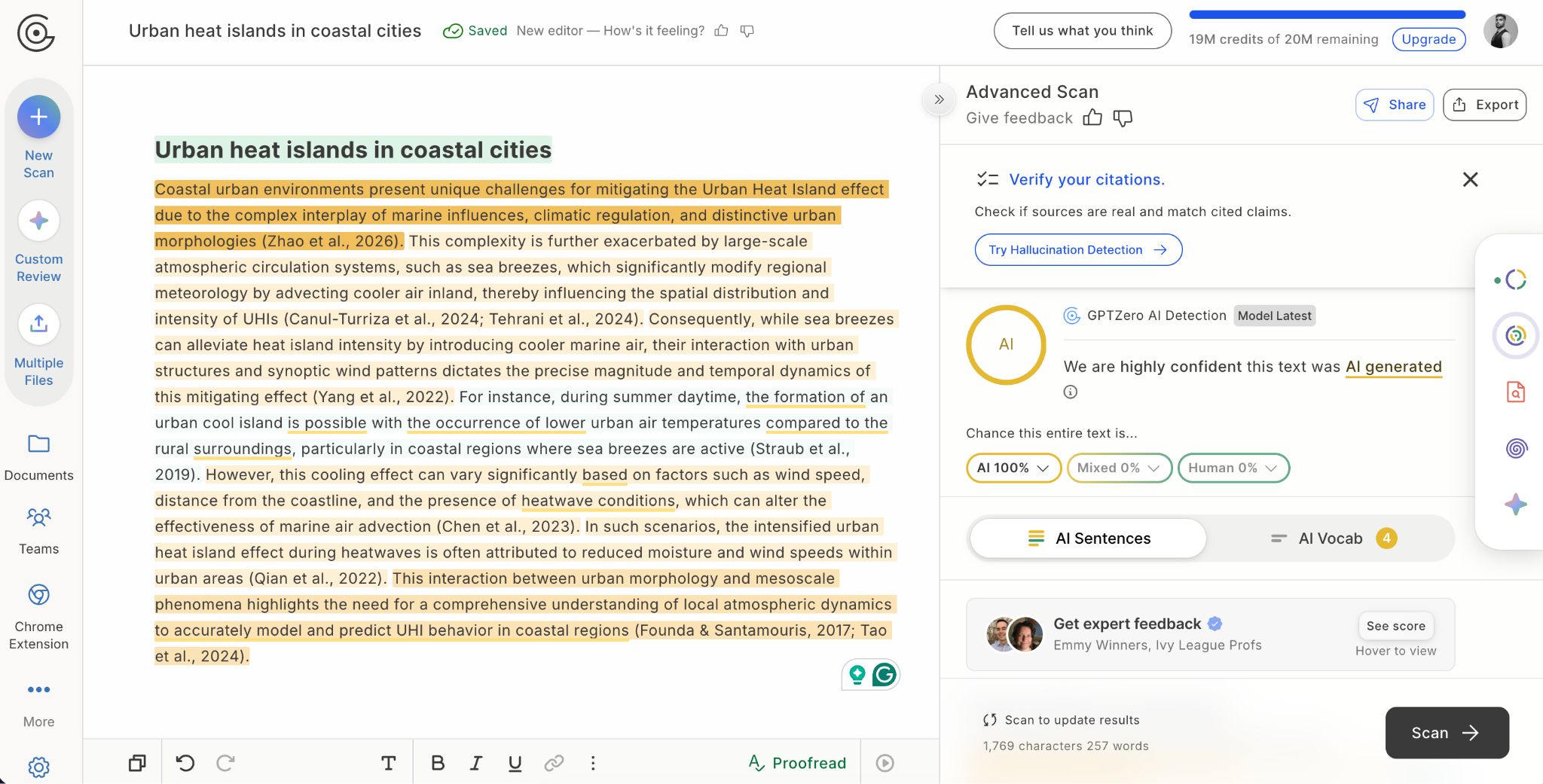
The detection is highly accurate, but if you’re generating full drafts using Jenni AI, that is a problem.
Academic journals have explicit warnings against the use of fully AI-generated texts. You’ll have to do a lot of manual editing to remove that AI-generated label.
So whenever in doubt, make sure to use GPTZero’s AI detector to check for AI.
My favorite aspect of the Jenni AI review experience has to be the full control I had while using the tool as an adjunct to my personal thought process, rather than feeling like I was outsourcing the entire writing to AI.
Preserve What's Human Using GPTZero
In my experience, Jenni AI is great for times when you hit a creative block, and you need an AI tool that won’t hallucinate references for you.
It’s also really good with editing features, so if you already have a rough draft, you can use Jenni AI for improving your flow, arguments, grammar & punctuation, formatting, and referencing.
The only place where I find it limiting is the 100% AI-generated label on the text it produces. To fix that, you will have to pair Jenni AI with a reliable AI detection tool.
GPTZero is the best-in-class AI detector, according to independent benchmarks like RAID. It runs multi-layered AI and plagiarism detection checks. It also integrates with major learning management systems (LMS) such as Canvas, Blackboard, Schoology, and Google Classroom, and is trusted by institutions worldwide.
If you're curious, run any AI text through GPTZero for free and see how accurate the results are for yourself.