SafeAssign Plagiarism Checker Review: Key Features, Pricing, & More
SafeAssign runs inside Blackboard and flags plagiarism the moment students submit. Here's what it checks, how accurate it is, what its reports look like, and what institutions pay.

MIT’s Committee on Discipline (COD) conducts a yearly count of academic misconduct cases at the university. They have revealed that academic misconduct cases sharply rose during the COVID-19 pandemic, but dropped just as sharply in 2025.
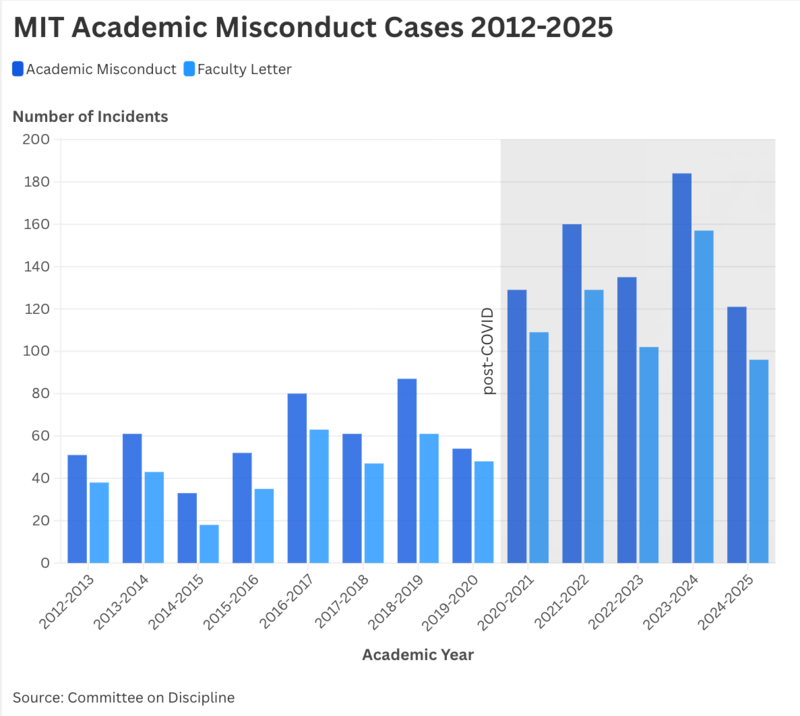
According to the MIT Mind and Hand Book, academic misconduct includes cheating, plagiarism, unauthorized collaboration, and other instances of academic dishonesty.
A big driver of this downtrend in plagiarism at MIT and the rest of the academic world is the large-scale adoption of plagiarism checkers by educational institutions. SafeAssign is one such plagiarism checker.
You might not have heard of it before because it is locked to the Blackboard LMS. But that doesn’t mean it doesn’t deliver. It actually has a unique set of features.
This is an educational guide about the SafeAssign plagiarism checker. You’ll learn about what it is, how it works, its key features, and what makes it stand out.
What is SafeAssign?
SafeAssign is a plagiarism checking tool that comes built into the Blackboard LMS. It is Blackboard’s native plagiarism checker that was launched in 2007.
SafeAssign is not enabled by default. It’s up to instructors whether they want to enable SafeAssign for an assignment (or test).
When enabled, SafeAssign automatically compares submissions against databases of student submissions, published papers, and other sources on the internet and produces an originality report.
If the teacher decides not to enable SafeAssign for an assignment, they can still run manual plagiarism checks on the submissions of their choice.
They can also choose whether students should be able to view their originality reports.
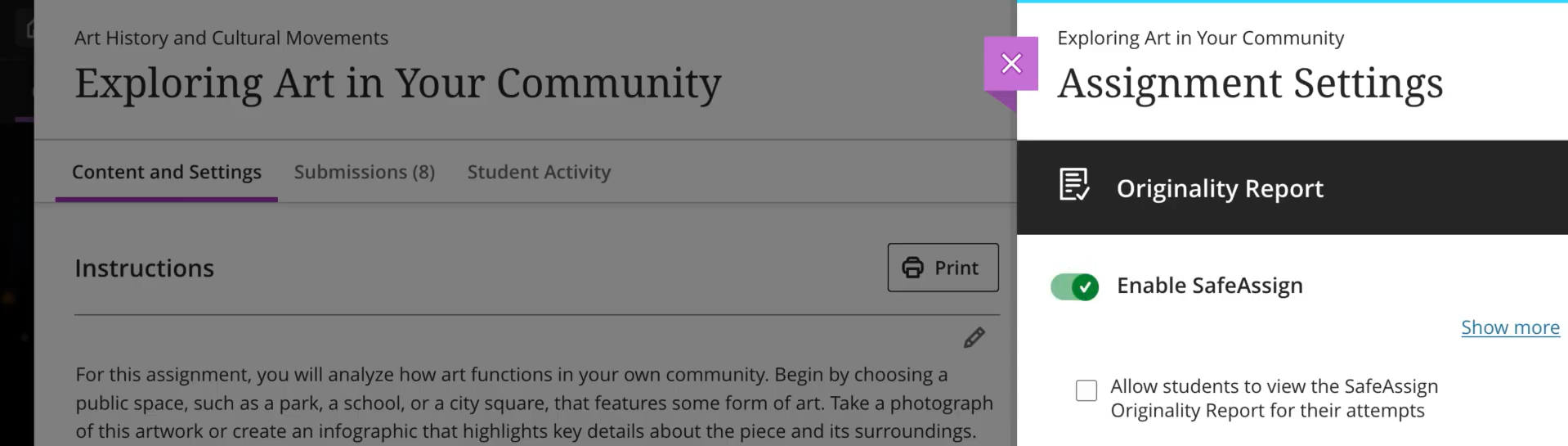
The Layout of SafeAssign’s Originality Reports
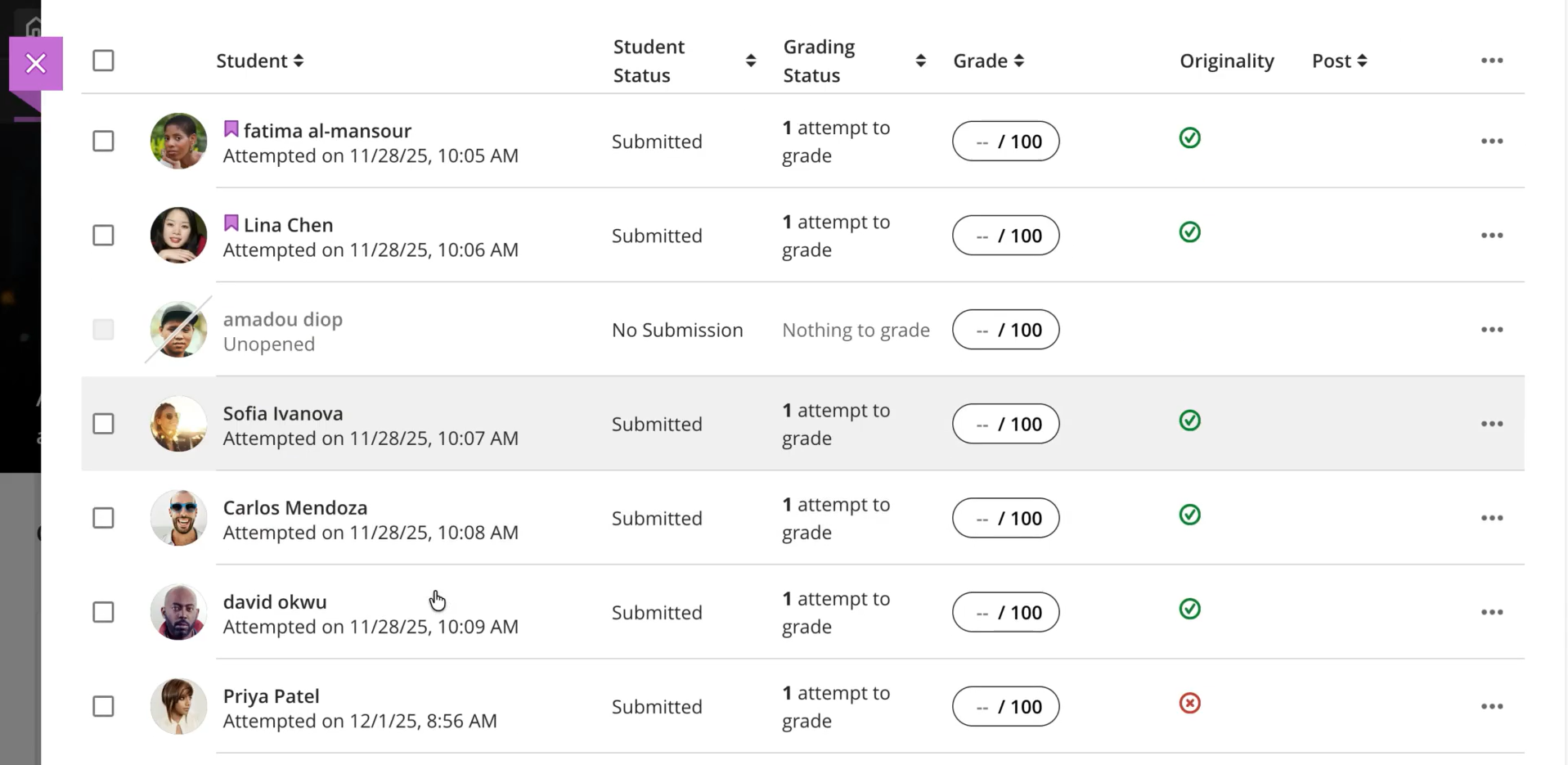
The originality report becomes available shortly after the submission. You’ll be able to tell from the submission list when a submission’s originality report is ready.
A green tick in the Originality column of a submission means no plagiarism was found or there’s a very low risk of plagiarism. A red colored cross indicates a high risk of plagiarism.
The Preview of Plagiarism Scan
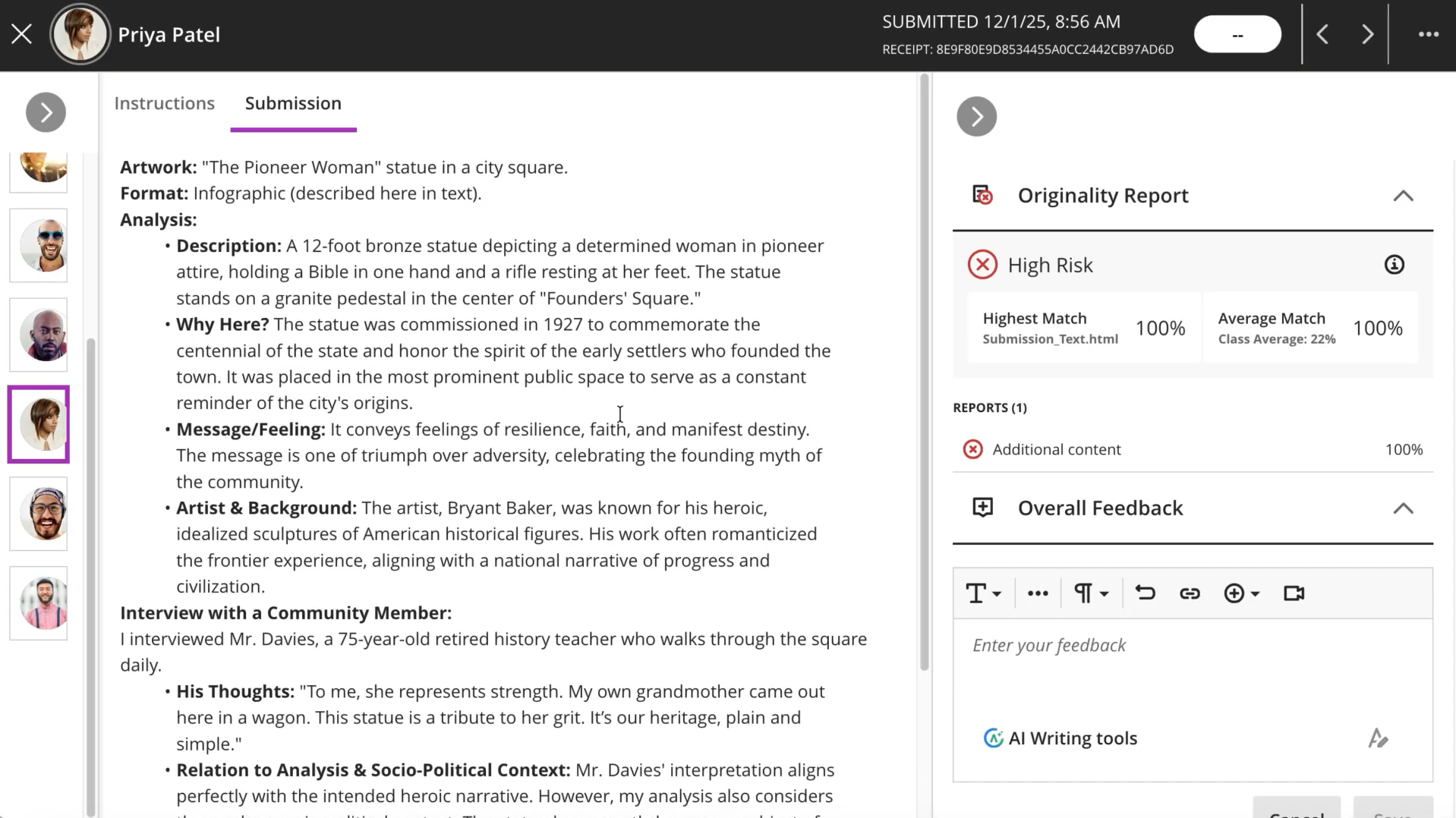
A preview of plagiarism results is displayed next to the submitted content when you open a submission.
This preview mentions three things:
- The overall risk of plagiarism, which can be:
- Low (below 15% plagiarism)
- Medium (between 15% to 40% plagiarism)
- High (above 40% plagiarism)
- The highest percentage of plagiarism from a source and the average percentage of plagiarism from all sources. That’s my understanding of what the two percentages mean. SafeAssign’s help center guides do not explain what exactly they mean. It just says “average and highest text match for the pieces of your attempt” without elaborating.
- The detailed originality report for each attachment in the submission
In the latest version of Blackboard, according to a tutorial video posted on YouTube, the preview looks like this:
The Originality Report
In the screenshot above, the submission contains just one attachment. That’s why you’re seeing one report under the “REPORTS” section. Had there been more attachments, SafeAssign would have generated a separate originality report for each one of them.
SafeAssign's originality report contains details about plagiarism instances found in an attachment.
All matching texts from different sources are highlighted in different colors and assigned a number. The plagiarized sources are grouped into different categories.
Take, for example, the submission in the screenshot below. There’s 75% plagiarism in the entire submission. Out of the entire plagiarized text:
- 47% is plagiarized from 4 internet sources
- 23% comes from 3 scholarly journals and publications
- 18% has been copied from 3 institutional archives
- 12% is taken from one source in the global database
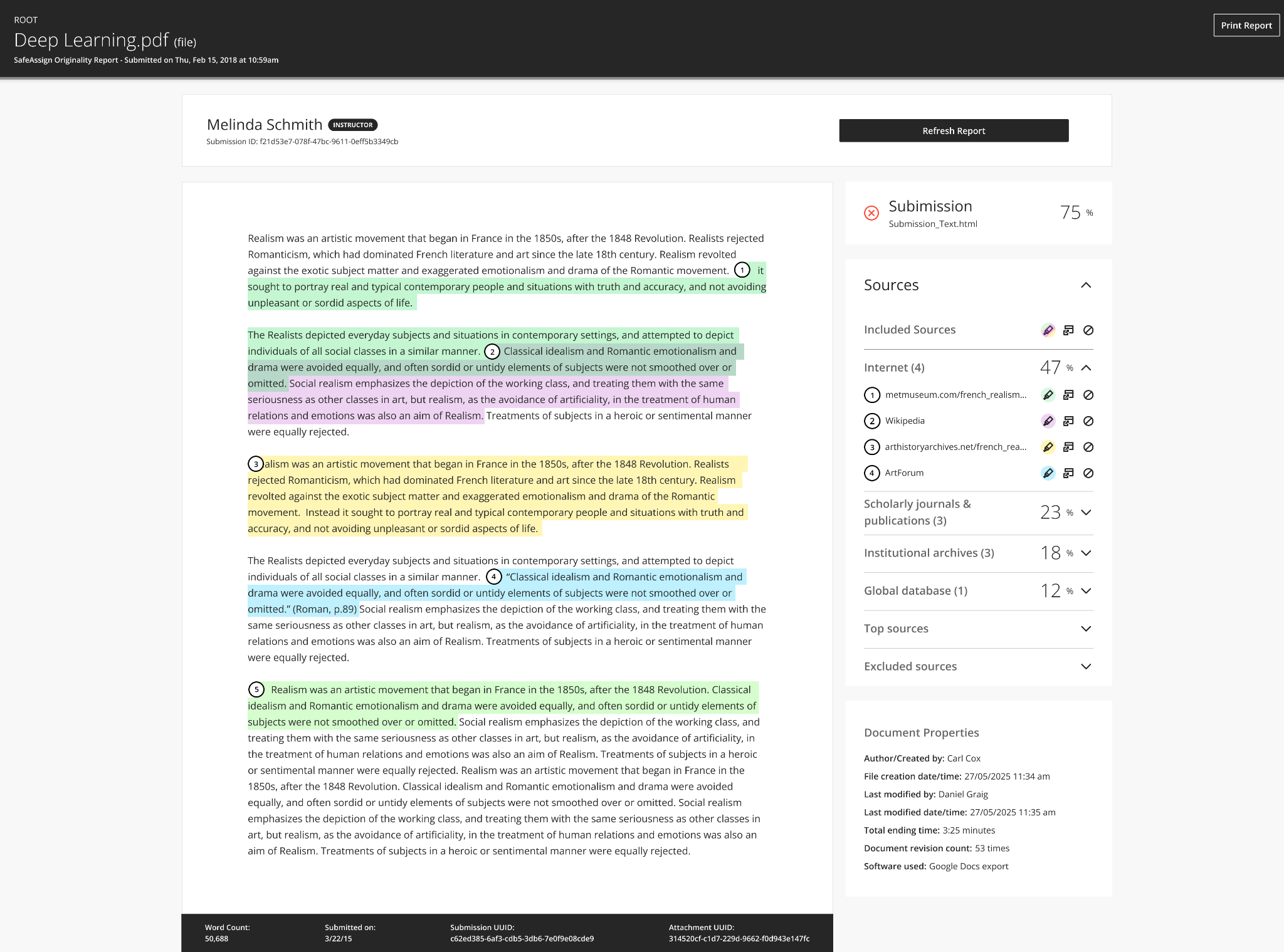
You can say that these are the different databases that SafeAssign compares each submission against.
Next to each matched source, there are three controls:
- Highlight toggle: Remove text highlighting or bring it back
- Open matching source: Open the matching source in a new tab
- Remove matching source: Remove the source from plagiarism results
You can also perform these actions on all sources at once from the controls provided next to “Included Sources.”
There’s also an option to view plagiarized text and the original source side-by-side right within the originality report by clicking a highlighted block of text. This saves users from visiting the original sources in a new tab.
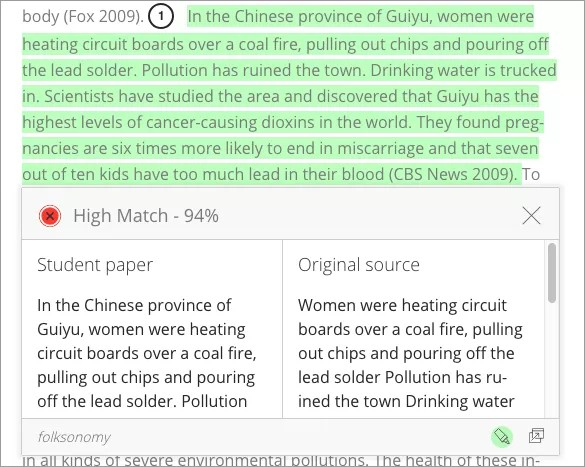
If the text matches the submitted work of other students from the institution, users can visit the student’s paper as well.
If the source name reads “non-existent paper,” that means SafeAssign is detecting plagiarism from a student’s paper that was deleted from the LMS. SafeAssign can detect plagiarism from deleted submissions because it permanently saves copies of all submissions in its database.
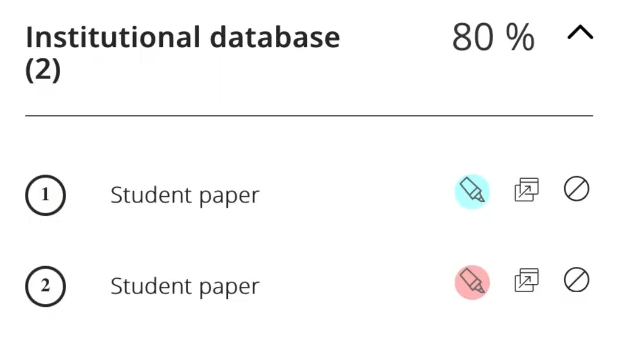
Another scenario where you cannot open a plagiarized student paper is if it belongs to some other institution.
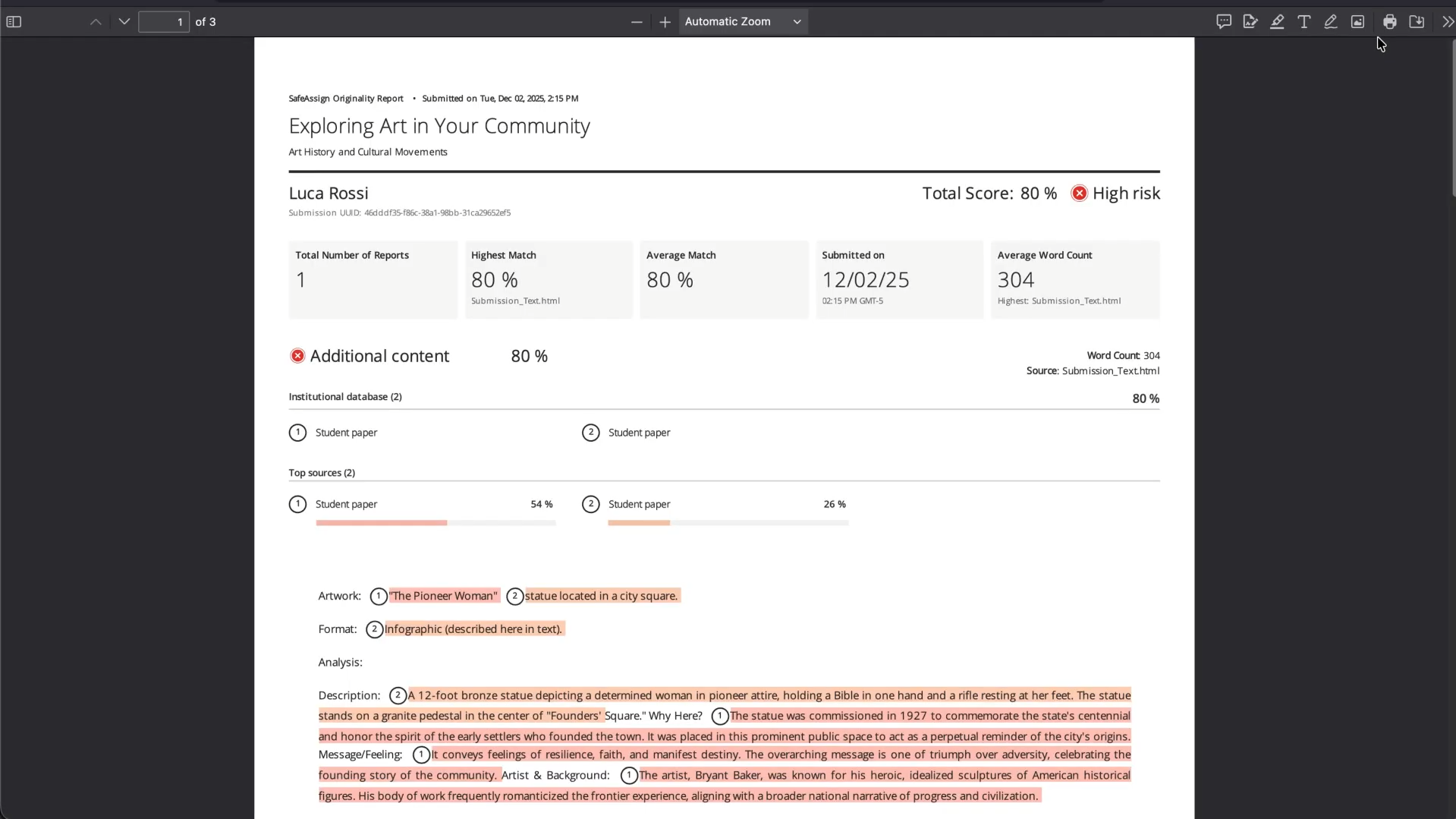
Lastly, there’s an option to view the printable version of the originality report. This version lists all matching text between the submitted file and the original source in a table at the end of the submission content.
Who Can Use SafeAssign?
SafeAssign is only for institutional usage, and that too, for a couple of institutions only.
Teachers and students can use it if their institute uses the Blackboard LMS. It’s important to clarify that students cannot truly “use” SafeAssign to check for plagiarism in their work before submitting. They only view the originality report automatically generated after they have submitted their work. Only teachers can truly use the tool to perform plagiarism checks either automatically or manually.
It is a lesser-known fact that Moodle users can also use SafeAssign through a plugin. However, it seems from Moodle’s own stats that the plugin isn’t widely used by Moodle users.
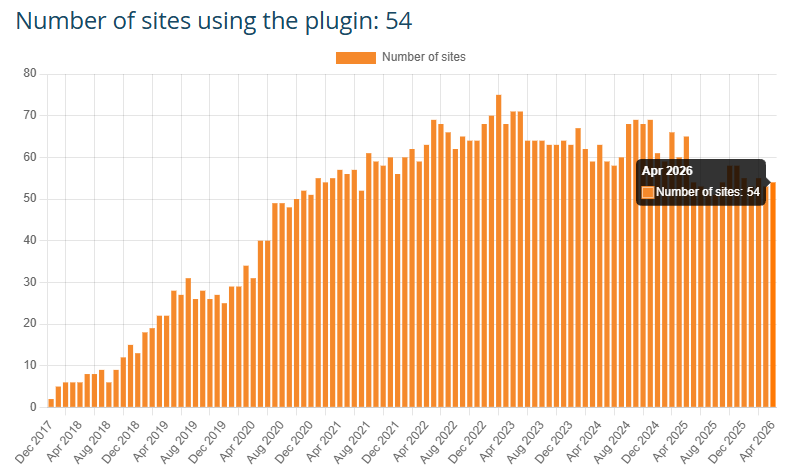
If you don’t belong to these two user groups, you cannot use SafeAssign.
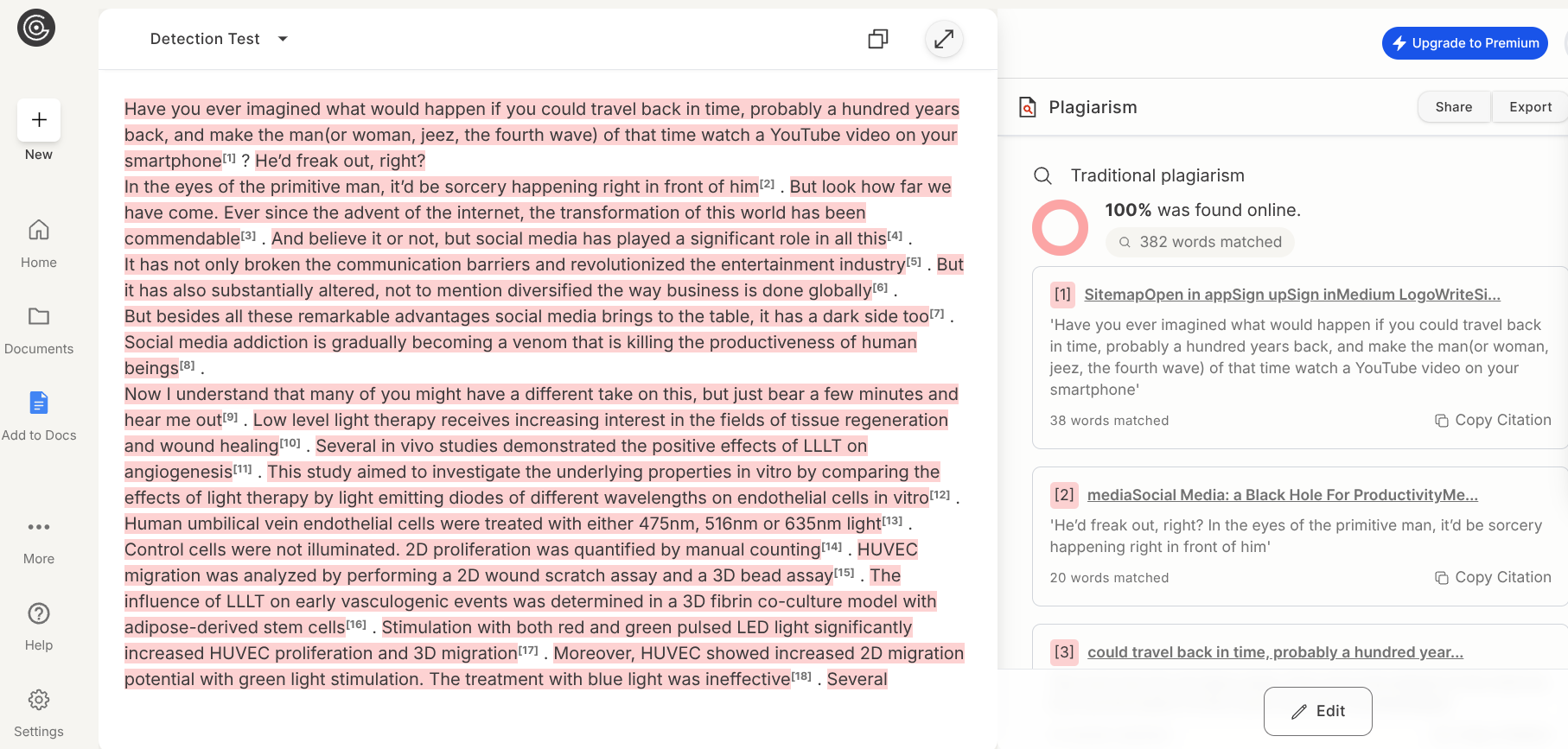
In that case, you can use a better SafeAssign alternative like GPTZero’s plagiarism checker, which is available for all (teachers and students) and also comes with one of the most accurate AI detectors too.
GPTZero can detect plagiarism from over 100M scholarly articles, research papers, websites, and books with accuracy. The tool can integrate with LMS platforms like Canvas, Blackboard, Schoology, and Google Classroom.
Key SafeAssign Features
SafeAssign has some unique tools that you might not have seen other plagiarism checkers offer:
- Multiple Databases: SafeAssign compares student submissions against the following databases to check for plagiarism:
- Internet
- Institutional Database (student submissions to SafeAssign, each institution has its own institutional database)
- Global Reference Database (Cross-institutional database where more than 15 million student papers are stored with their consent.)
- DirectSubmit: Instructors can submit content as a file (or collection of files) or text and do the following:
- Check specific files for plagiarism
- Add specific content to the SafeAssign’s institutional database not already available in it. For example, an instructor may manually upload their notes or lectures to the database to catch plagiarism attempts from there.
- Multiple Attempts: Blackboard allows assignments where students can make multiple attempts. SafeAssign runs a plagiarism scan on all attempts of a student for an assignment, but doesn’t check the attempts against each other.
- Multiple Attachments: SafeAssign also supports assignments that require multiple deliverables. Each submitted attachment gets its own originality report.
- Group Assignments: SafeAssign claims to support group assignments, but it’s unclear how submissions work in that case or what the originality report looks like for a group assignment. Neither Blackboard’s help center guides nor their YouTube tutorials happen to elaborate on this feature.
Is SafeAssign Accurate?
SafeAssign says its plagiarism score is a warning indicator only. You might have seen that it uses the words “risk” or “match” and never something explicit like “plagiarism” in its reports.
By doing so, SafeAssign wants you to review the sources and compare them to the student submission to make your own judgment. It doesn’t want you to take the machine's estimated percentage as the final verdict.
You might take this as just a recommendation. But it isn’t. Reviews on Reddit show that manual reviews are important because SafeAssign tends to flag even quoted and cited text.

So if you’re using SafeAssign, it’s best not to take the percentage as an accurate final verdict.
SafeAssign Pricing
SafeAssign isn’t a standalone plagiarism checker. It is part of Blackboard LMS. So, to use SafeAssign, you must be an institution subscribed to Blackboard.
Blackboard’s pricing isn’t public. They charge institutions different amounts based on multiple factors, the number of users being one of them.
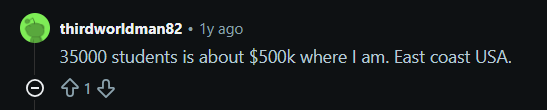
We still have some accounts from Reddit of what some institutions pay. A user claims their institution of 35,000 students pays $500k annually for their Blackboard subscription.
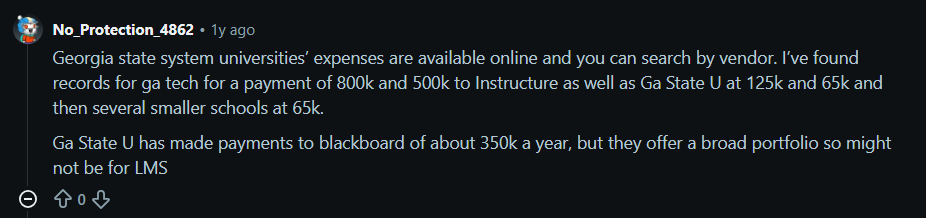
Another one says Georgia State University has paid about $350k a year.
GPTZero: World-Class AI Detector, & Plagiarism Checker
SafeAssign is undoubtedly a professional tool with a legacy. But it’s not usable outside Blackboard.
Institutions using other LMS platforms or users from outside academia cannot use it.
But don’t worry, because you still have GPTZero.
GPTZero offers a highly accurate plagiarism checker for both academics and professionals in other fields.
The best part is that GPTZero can be used by individual professionals and students. You don’t have to be part of an educational institution to use it.
Nowadays, AI-written submissions are a bigger concern than plagiarism. GPTZero also addresses this issue with its best-in-class AI detector that has been proven to be the most accurate in the market by independent benchmarks.
Run your draft through GPTZero for free and see the accuracy yourself.